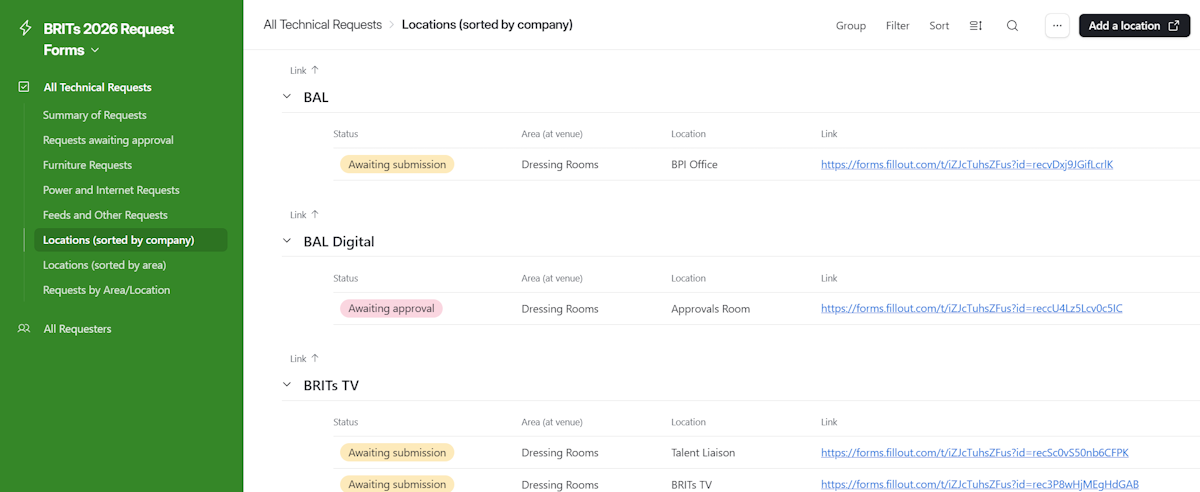
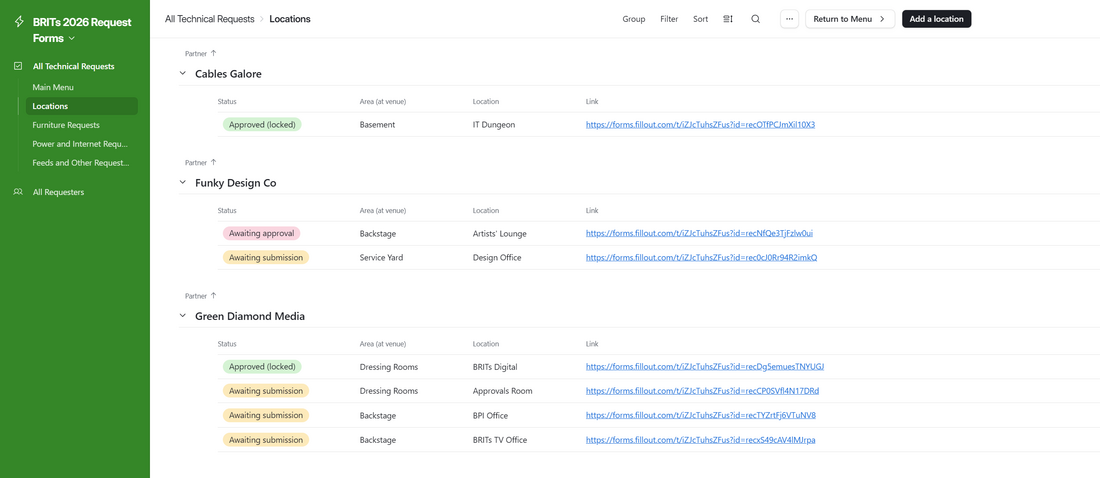
Beforeallocated doingto anything else, organisations andspecific individuals whoor organisations. An example would be the space allocated to the BAL Digital team, which is a room in the Dressing Rooms area.
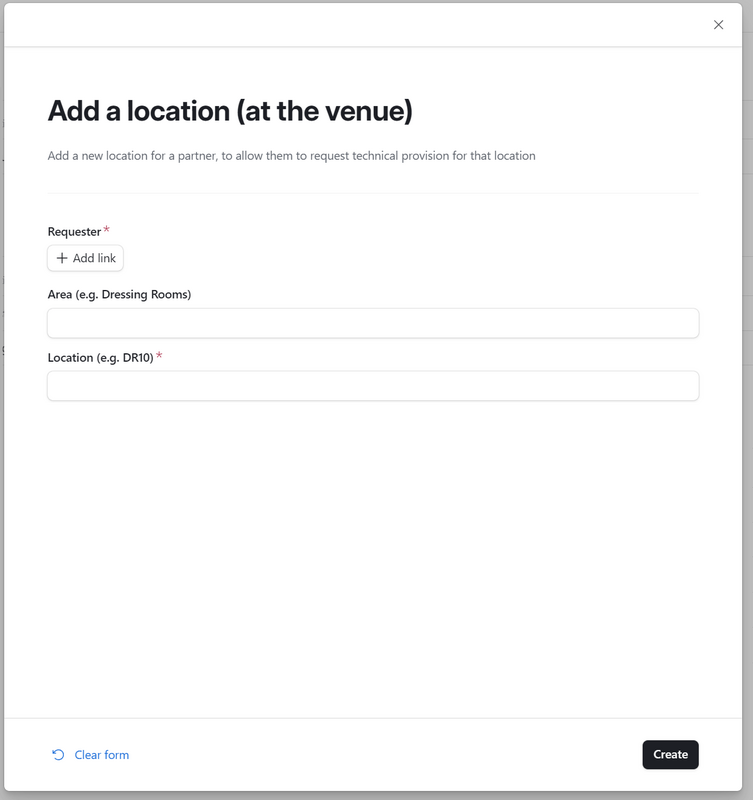
To add this location to the requests database, simply select Locations (sorted by company) or Locations (sorted by area) from the menu, then click the Add a location button.
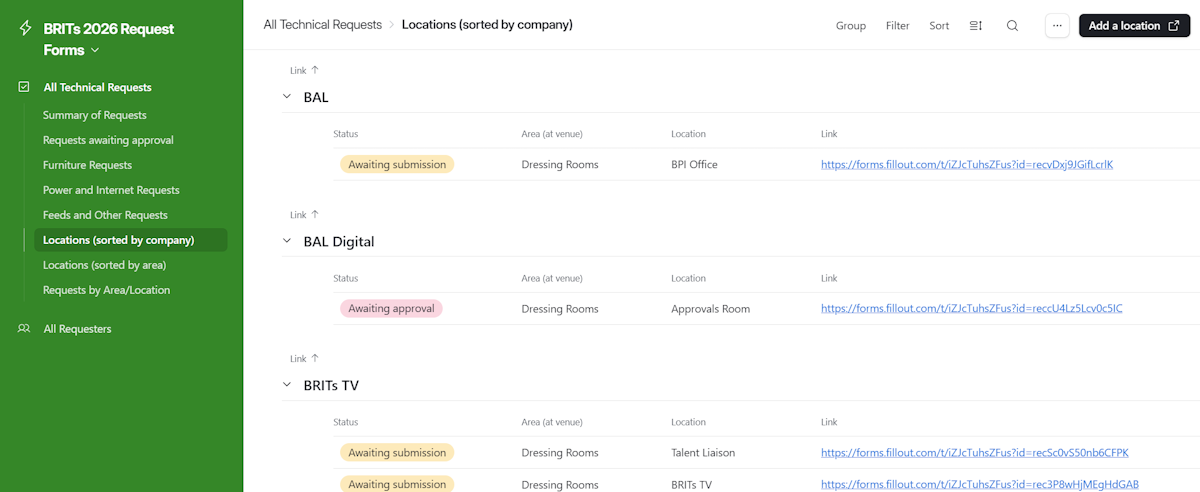
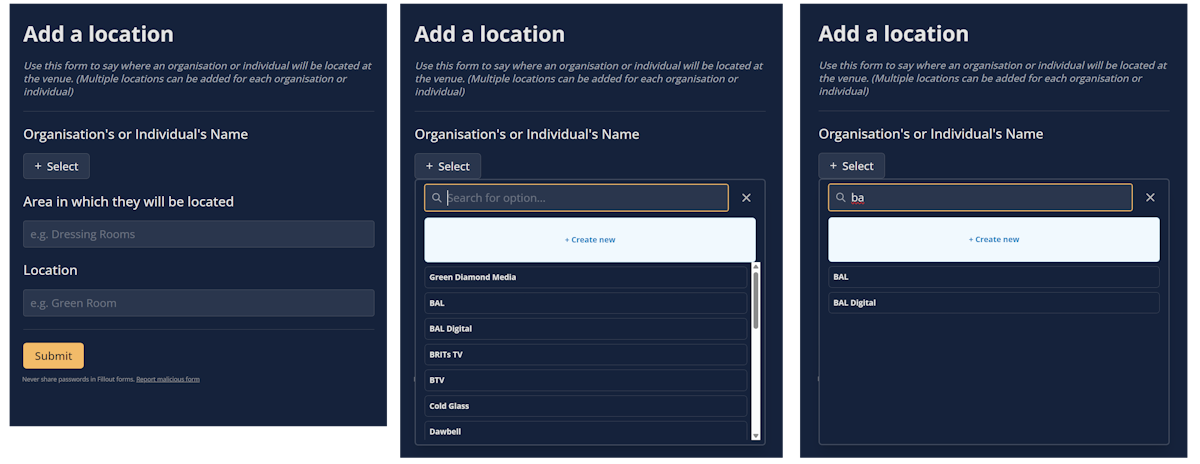
After clicking the Add a location button, you will be submitting requests needtaken to bea addedform that will allow you to Requestersselect list.the Toindividual accessor thisorganisation list,and clickenter the area and location of the space allocated to them.
Click on the Manage+ RequestersSelect button to see a list of individuals and organisations already in the mainsystem. menu.
ToClick on the appropriate name to select that individual or organisation. You can narrow down the list by entering a few characters into the Search for option... box, and you can also add a companynew individual or individualorganisation by clicking + Create new.
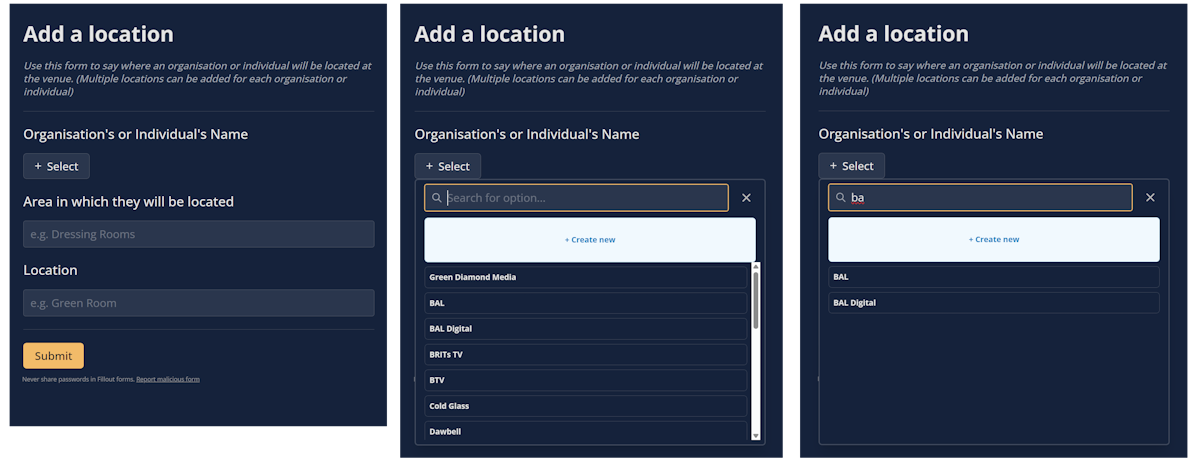
Once you have selected the correct name, enter the Area and Location of the space allocated to the list,individual simplyor organisation and click on the AddSubmit an organisation/individual button at top-right of the list (shown below) and complete the New Company form that pops up.
|