BRIT Awards Apps
- BRIT Awards Approvals Management
- Introduction
- Accessing the app
- Performance Status page
- Uploading a video file
- The Approvals Room process
- Emailing unique links
- BRIT Awards Technical Requirements
BRIT Awards Approvals Management
Introduction
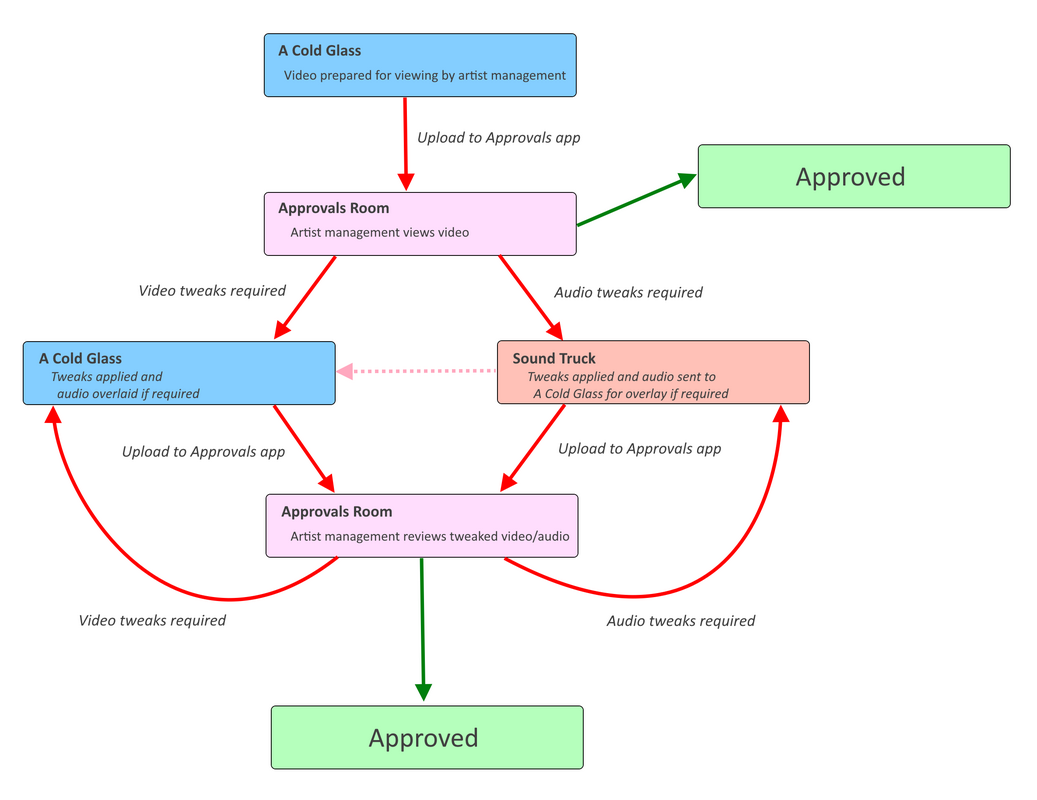
The BRIT Awards Approval Management app has been developed to streamline and add visibility to the workflow supporting artist approval of performance video. An overview of that workflow is shown below.
Accessing the app
|
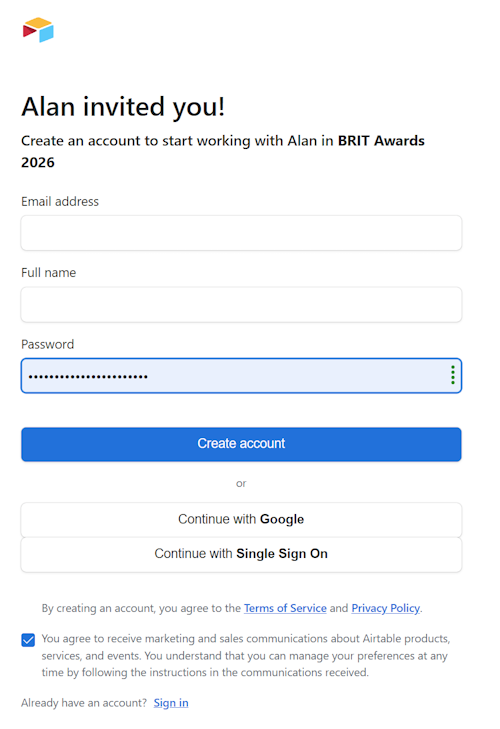
You will receive an invitation email with a link to a page similar to the one on the right, prompting you to create an AirTable account that will allow you to access the app. |
 |
Performance Status page
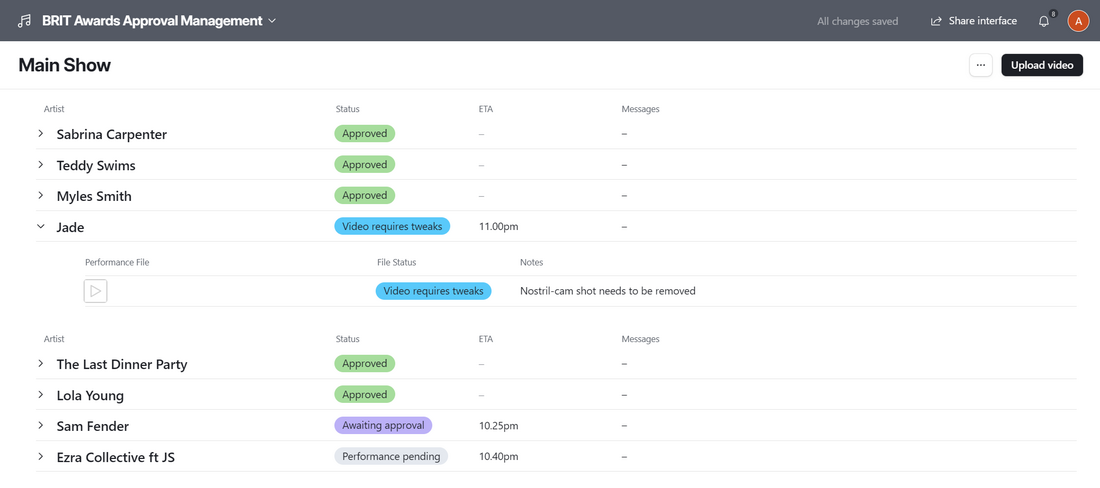
To access the app, you will log onto Airtable at the link you were sent when you were invited to use the app. Once logged on, you will see the performance status page, as shown below. Clicking on the > icon to the left of an artist's name will show you the files that have been uploaded for approval for that artist. Clicking on a ▶️ icon in the 'Performance File' column will play that file.
Uploading a video file

|
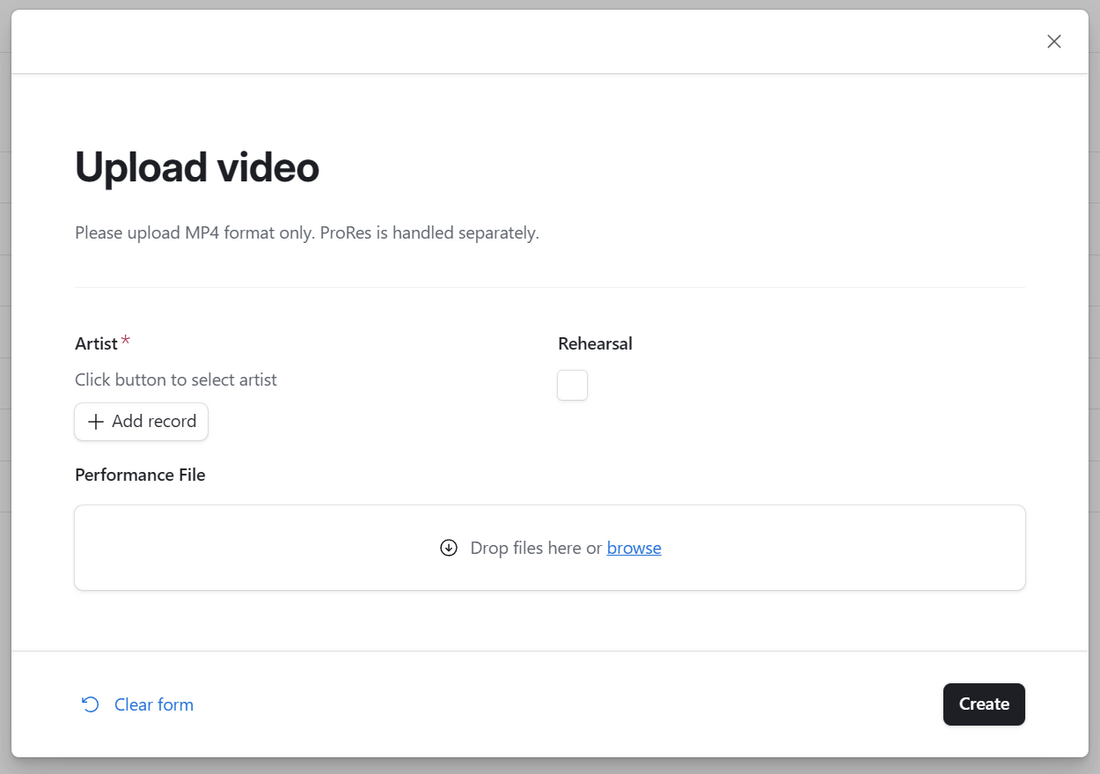
Uploading a video is simply a matter of clicking the 'Upload video' button and competing the form that pops up. Click the '+ Add record' button to select the artist, and drop the file to be uploaded onto the labelled box (or browse and select the file, if you prefer).
|
 |
The Approvals Room process

|
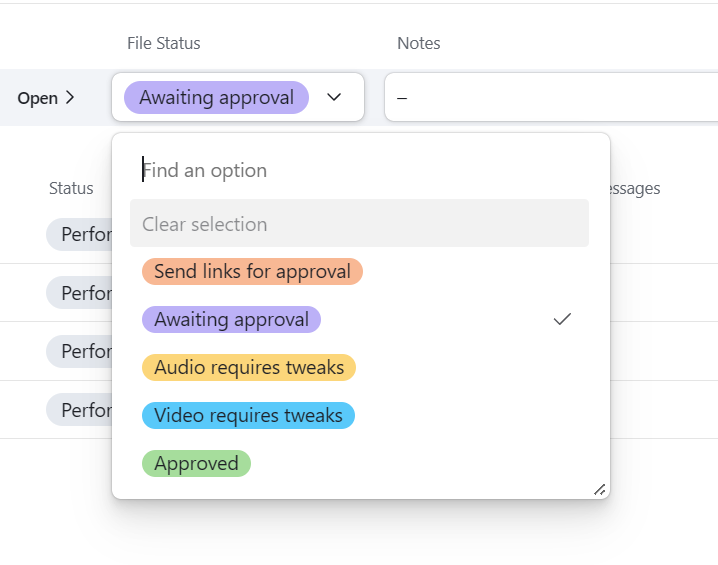
Once a file has been uploaded for approval, its status will automatically change to 'Awaiting approval'. The file can now be played by clicking on the ▶️button (which is gray, not blue, sorry!). |
 |
Emailing unique links
Once a video has been uploaded, a time limited link to the file is generated. This can be found by clicking the 'Open >' option that appears when you hover over a file.
Simply right-click on the long download link shown in the panel that appears to the right and select 'Copy'. You can then paste the link into emails/messages to anyone who needs access to the file.
To generate a new link (only after the existing link has expired), tick the box below the link.

BRIT Awards Technical Requirements
Introduction
The BRIT Awards Technical Requirements app has been developed to replace the ‘technical spreadsheet’ which has been used for many years to keep track of each area's/location's/company's requirements at the main show's venue.
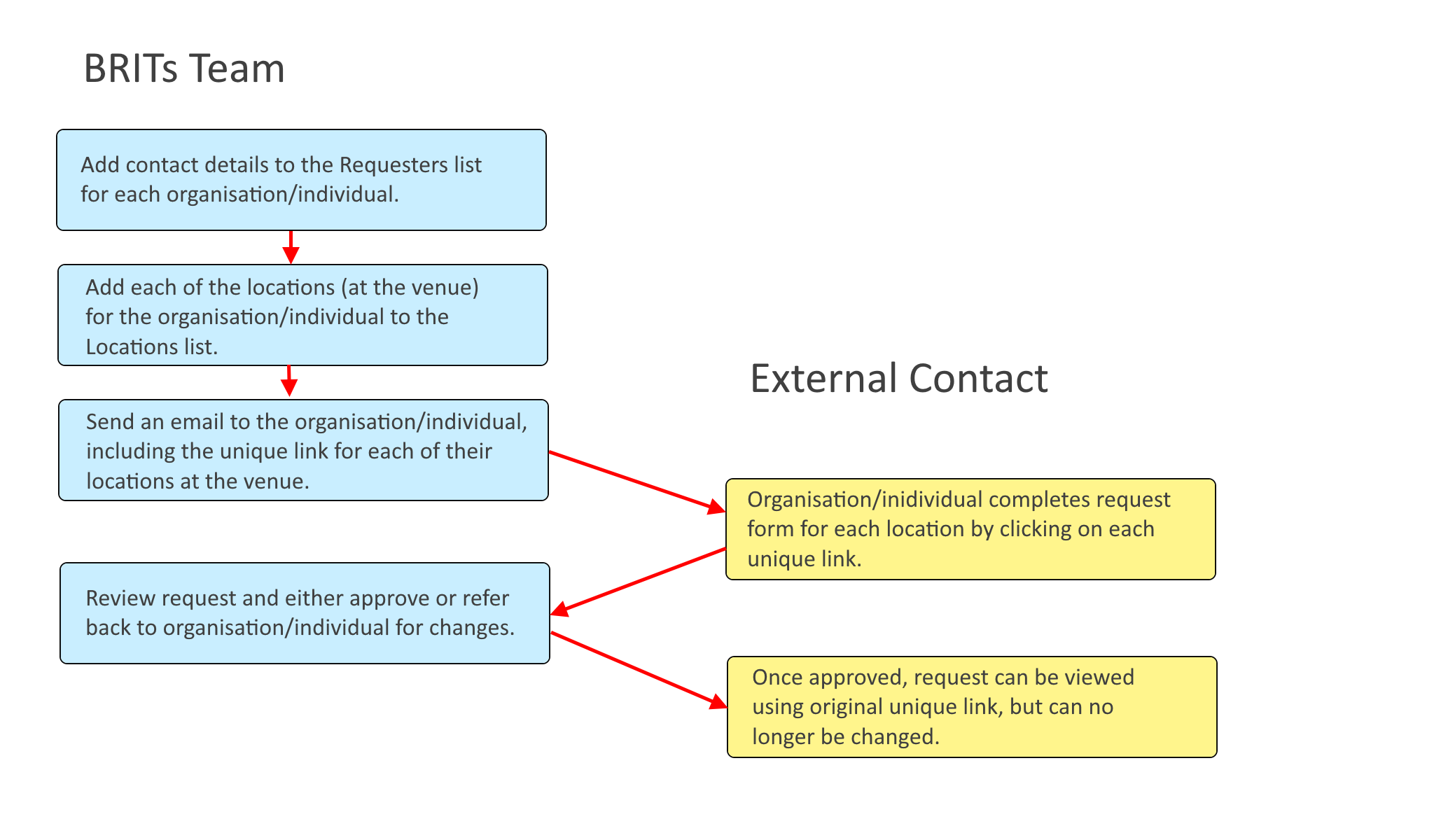
The aim of this app is to streamline some of the processes involved in gathering this information from the many parties involved. An overview of the process for gathering requirement information is shown below.
Accessing the app
|
You will receive an invitation email with a link to a page similar to the one on the right, prompting you to create an AirTable account that will allow you to access the app. |
|
Main Menu
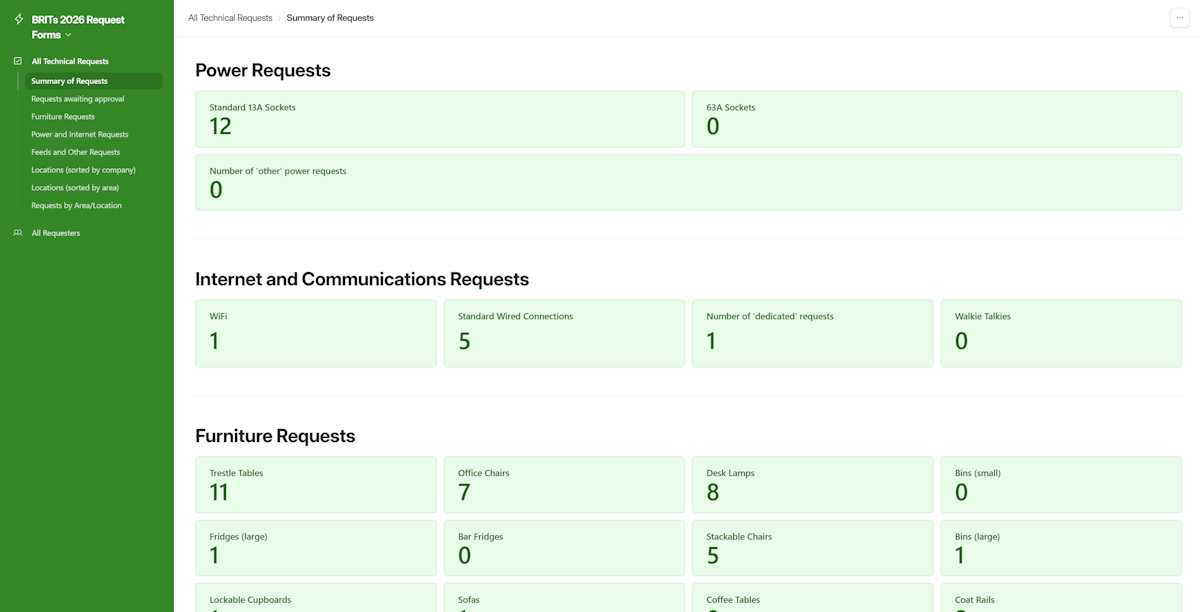
When you log onto Airtable at the link you were sent when you were invited to use the app, you will see the main menu, as shown below (the left-hand panel), along with a summary of requests received to date (the right-hand panel).
Depending on the access level you have been granted, you may have the ability to add to and edit lists, or you might simply have the ability to view lists.
The All Requesters menu option takes you to the list of organisations and individuals who can submit requests.
The All Technical Requests menu option contains a range of sub-options allowing you to view requests in different ways. For example, the there are options taking you to views limited to the specific types of request shown (Power and Internet/Furniture/Feeds and Other).
Locations
'Locations' are spaces allocated to specific individuals or organisations. An example would be the space allocated to the BAL Digital team, which is a room in the Dressing Rooms area.
To add this location to the requests database, simply select Locations (sorted by company) or Locations (sorted by area) from the menu, then click the Add a location button.
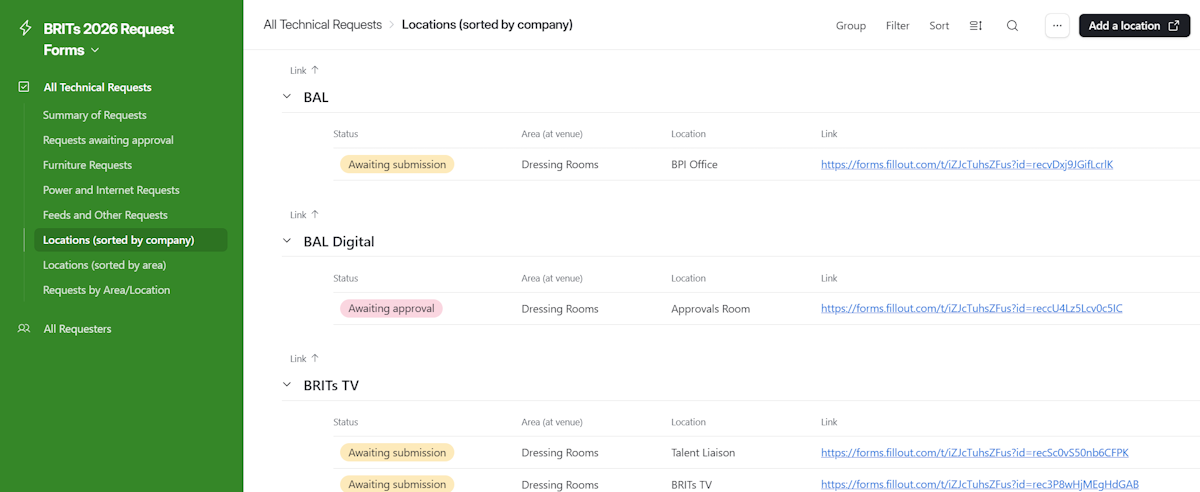
After clicking the Add a location button, you will be taken to a form that will allow you to select the individual or organisation and enter the area and location of the space allocated to them.
Click on the + Select button to see a list of individuals and organisations already in the system. Click on the appropriate name to select that individual or organisation. You can narrow down the list by entering a few characters into the Search for option... box, and you can also add a new individual or organisation by clicking + Create new.
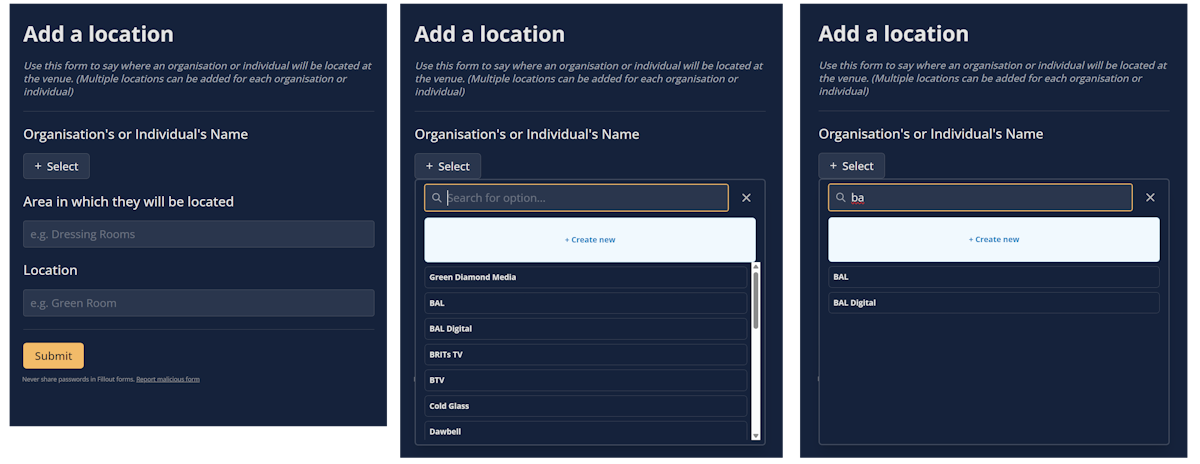
Once you have selected the correct name, enter the Area and Location of the space allocated to the individual or organisation and click the Submit button.
Emailing unique links
Once locations have been added for an organisation or individual, draft an email to them asking that they complete the Technical Request Form, and include the unique link for each location they are responsible for. (Do not right-click the link in the Locations list, as that will copy an Airtable link instead of the correct Fillout link.) Hover over the line for a location and click Open, then right-click the link in the side-panel that appears and select Copy link address, then paste the link into the email.
To make things clearer for a recipient who will receive multiple links, it would be good to add a description to each link. e.g. Design Office: https://forms.fillout.com/t/iZJcTuhsZFus?id=rec0NNhdgh96Hb)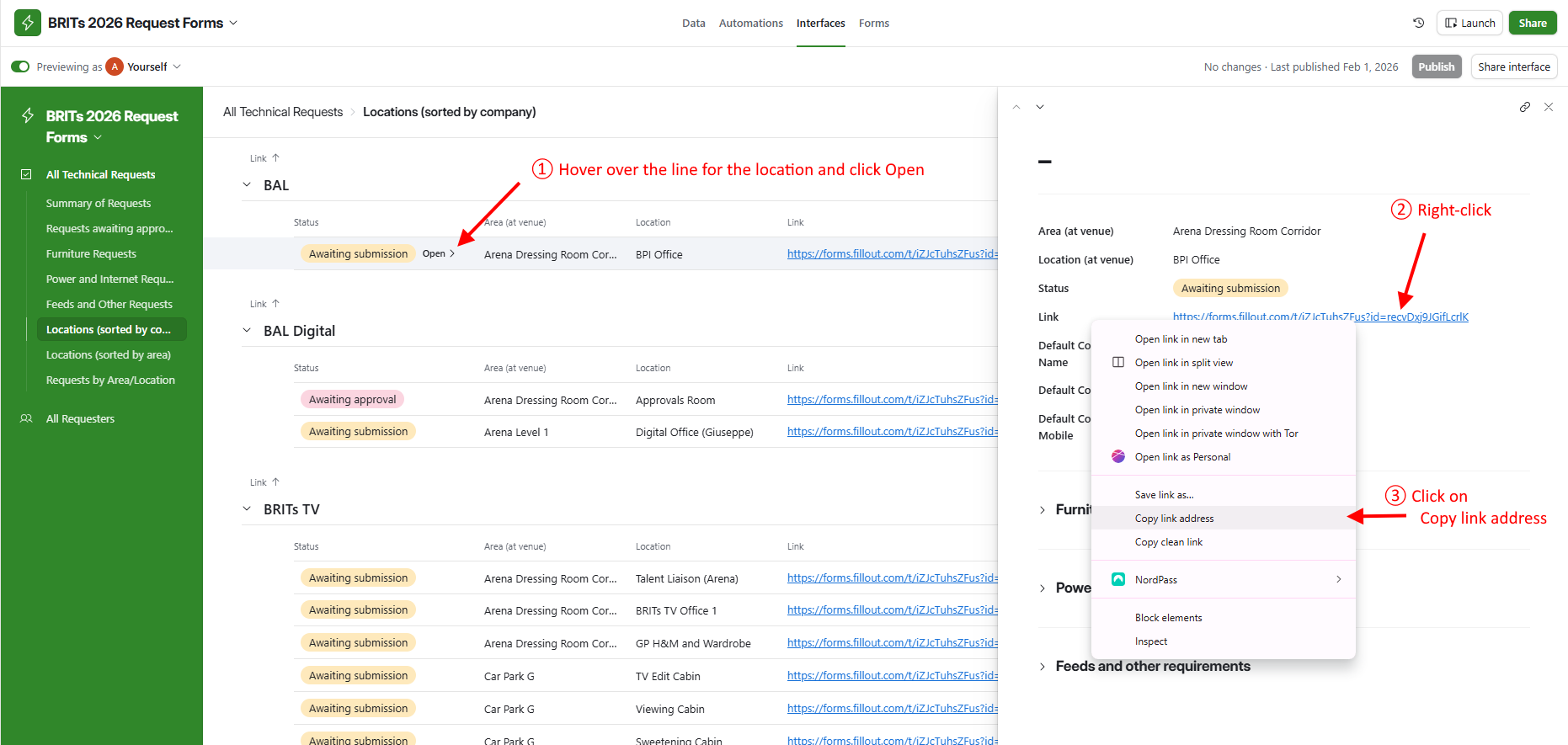
Reviewing submissions
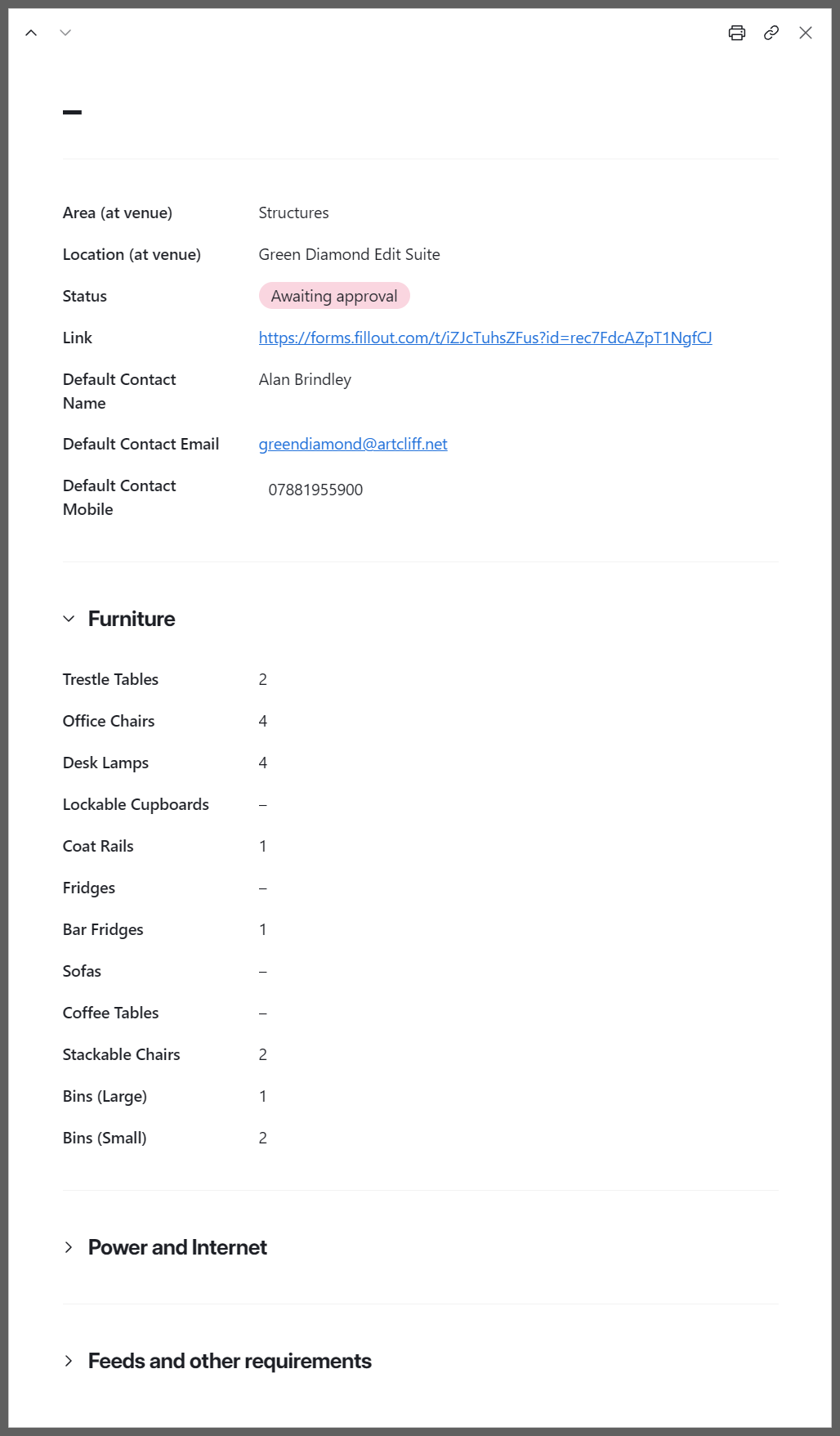
When the form has been completed for a location, the status for that request will automatically change to Awaiting approval. To review a request, click on the 'Open' link that appears beside the location's status when you hover over it, or anywhere in the blank space to the right of the Link column. This will open a side page with the request details.

|
The side page includes expandable sections for Furniture, Power and Internet and Feeds and other requirements.
Once these have been reviewed, the status for that location should be changed to either Clarification requested or Approved (locked) by clicking on the current status in the Locations list and selecting the appropriate option from the dropdown (shown below).
When clarification is needed, an email should be sent to the appropriate contact asking them to make the necessary changes to the form using the original link. |
 |
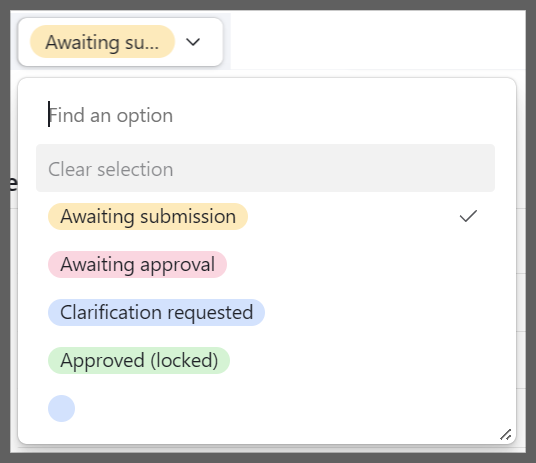
Once status has been set to Approved (locked), no further changes can be made via the link. Instead, details of the request will be displayed along with an email address for any urgent last minute changes.
THE REQUEST FORM
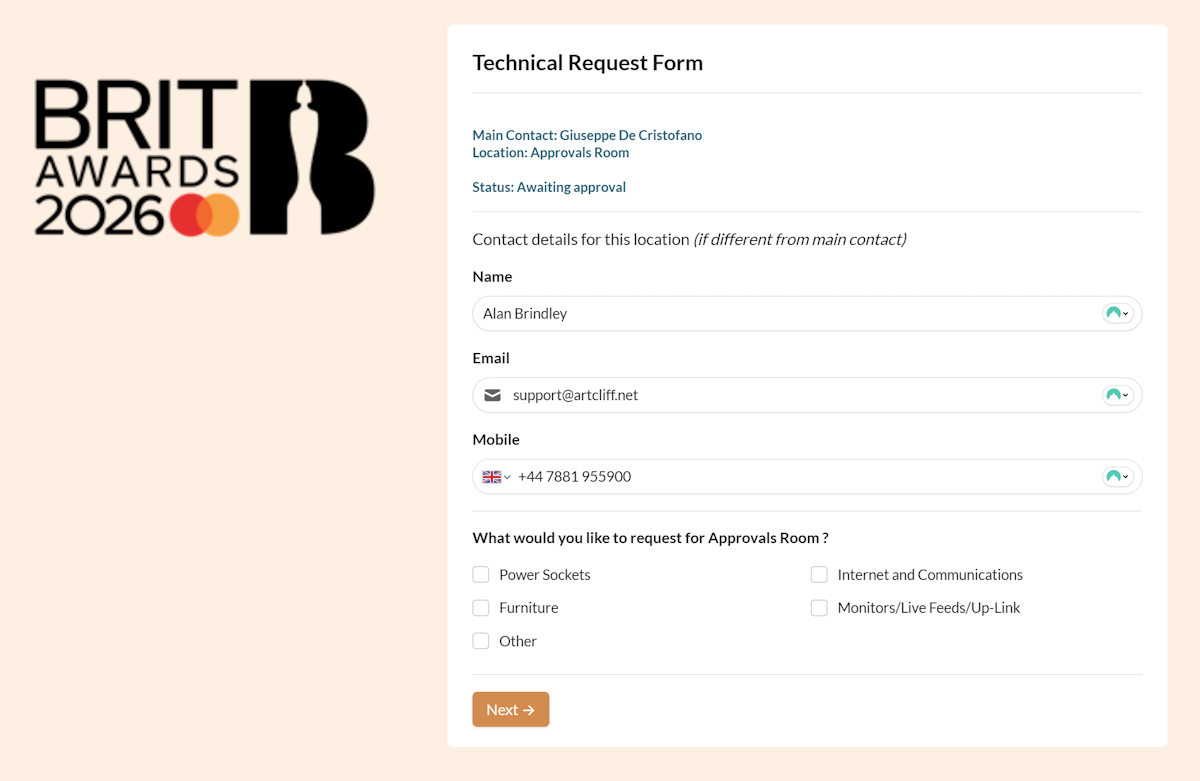
When the email recipient clicks on a unique link, they will be taken to the introduction page. The responses they give will be stored in the database at the location specified by that link.
INTRODUCTION PAGE
|
This page shows the specific location for which requirements are to be entered and the main contact name for the company/individual. Details for a different contact, specific to this location, can be entered if desired. |
 |
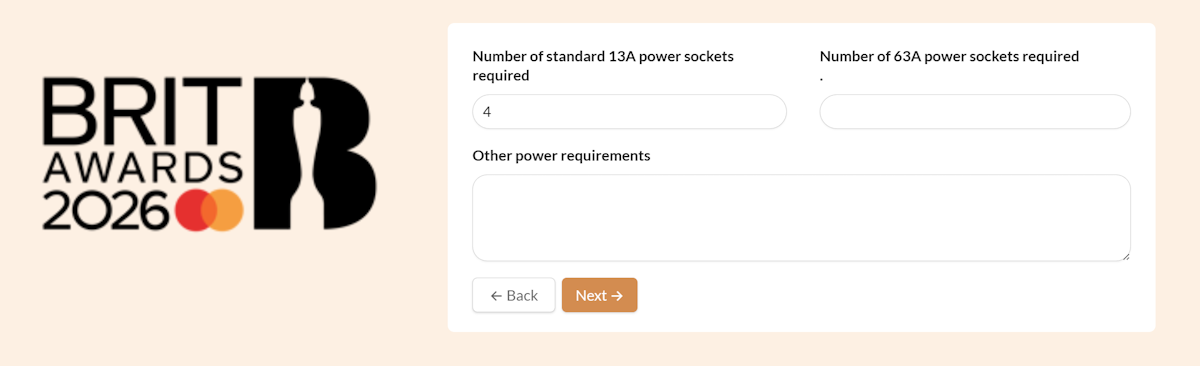
POWER REQUIREMENTS PAGE
|
This page allows power requirements to be described, including the number of 13A and 63A sockets needed, as well as a general description of any other power requirements. |
 |
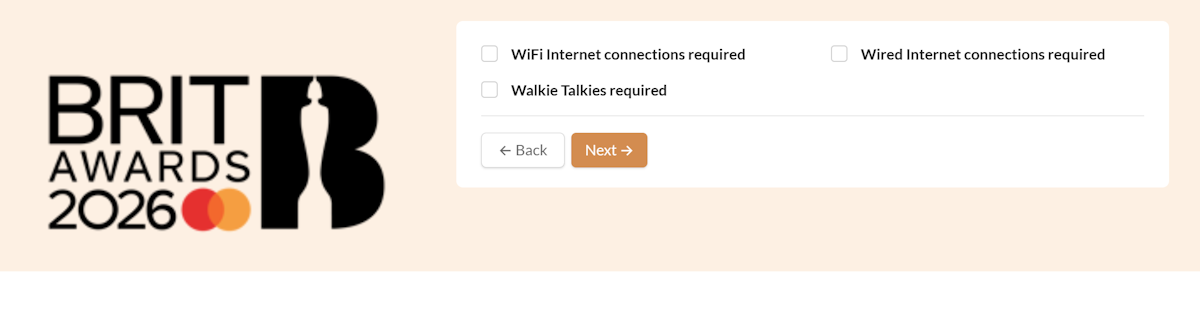
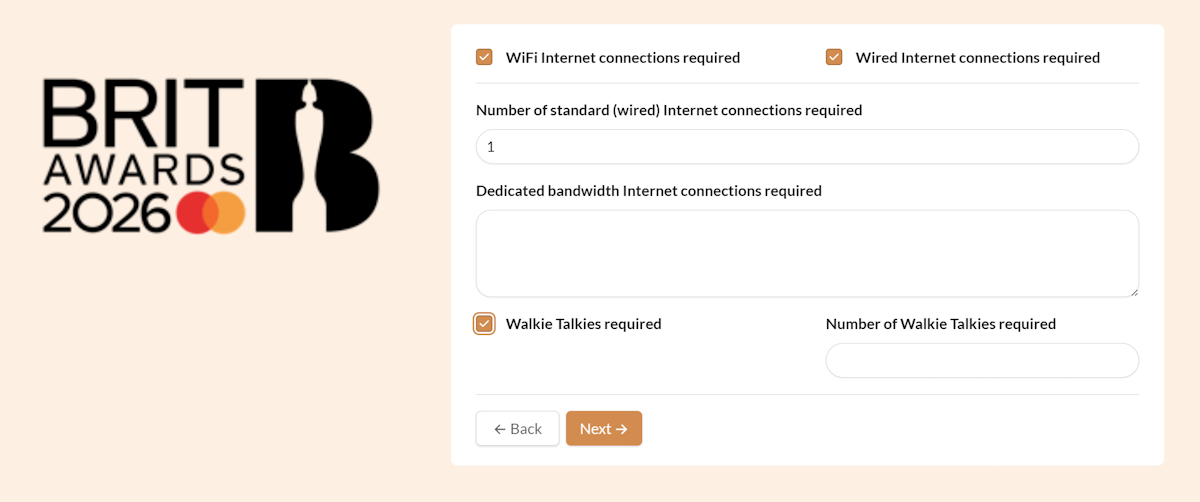
INTERNET AND COMMUNICATIONS REQUIREMENTS PAGE
|
This page allows Internet connectivity requirements to be described. Ticking Wired Internet connections required and/or Walkie Talkies required opens additional fields to detail these requirements. |
|
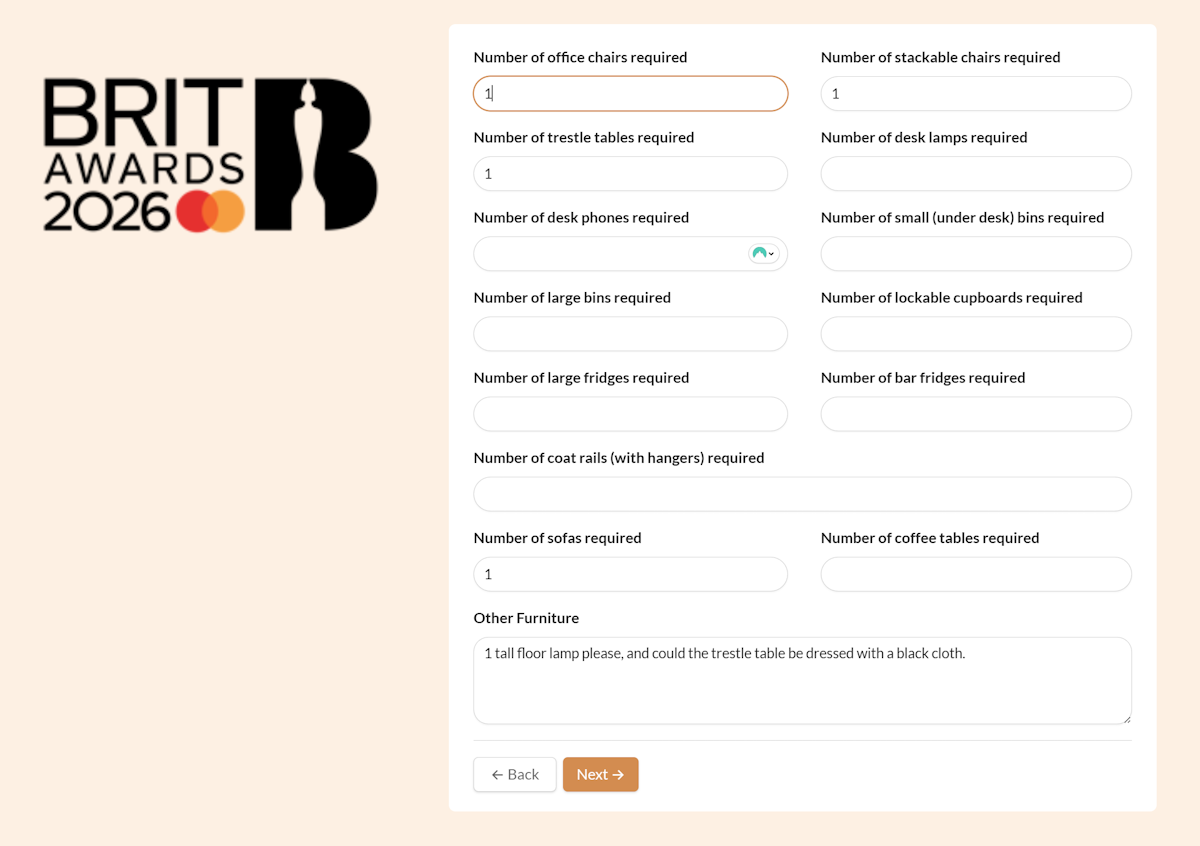
FURNITURE REQUIREMENTS PAGE
|
This page allows the most common types of furniture requirements to be requested.
Other furniture requirements can be detailed in the final field on the page. |
 |
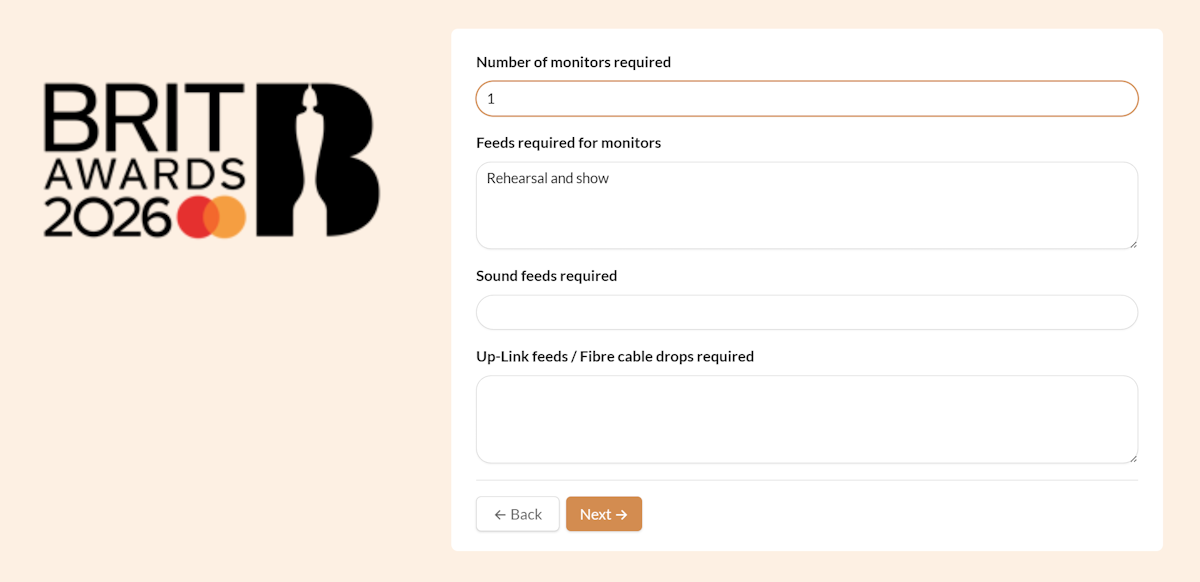
FEED REQUIREMENTS PAGE
|
This page allows monitor and audio/video feed requirements to be described. It also allows up-link feeds and fibre cable drops to be requested. |
 |
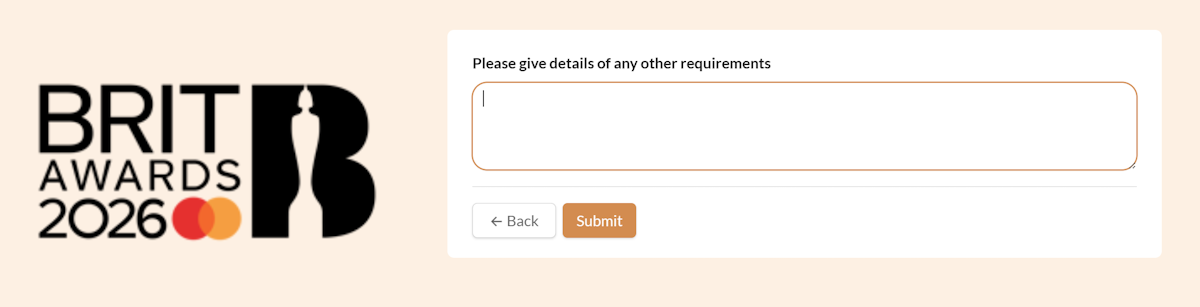
OTHER REQUIREMENTS PAGE
|
This page allows a general description of any other requirements. |
 |