BRIT Awards Approvals Management
- Introduction
- Accessing the app
- Performance Status page
- Uploading a video file
- The Approvals Room process
- Emailing unique links
Introduction
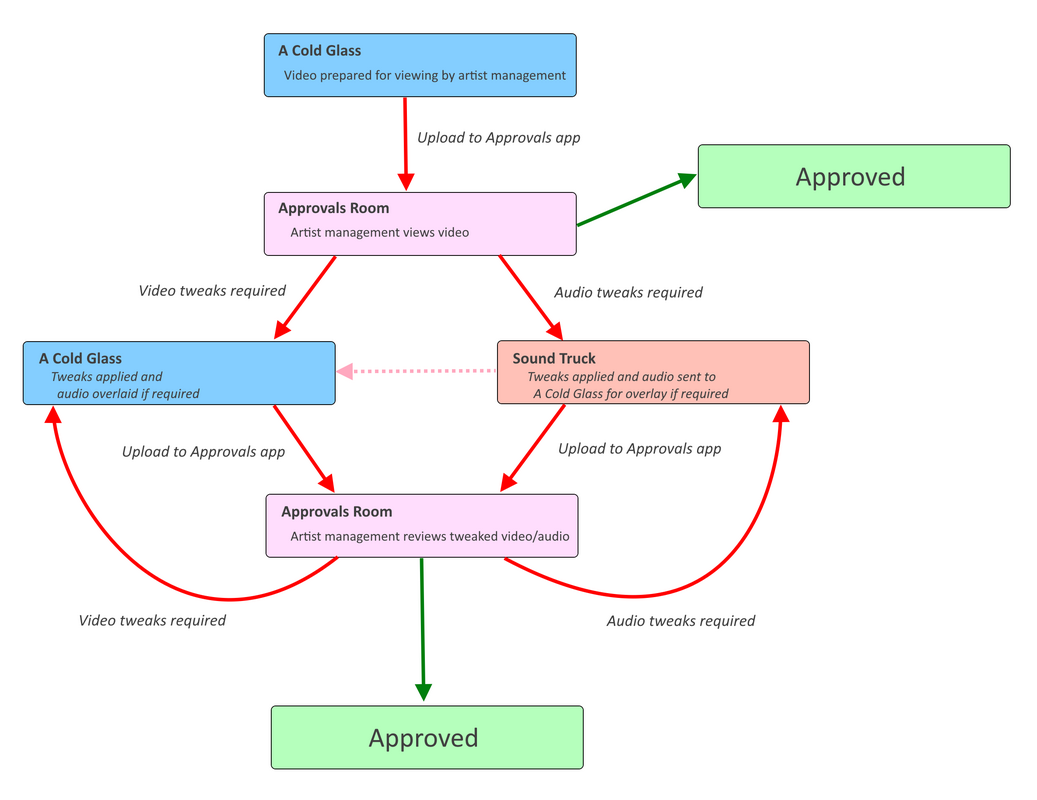
The BRIT Awards Approval Management app has been developed to streamline and add visibility to the workflow supporting artist approval of performance video. An overview of that workflow is shown below.
Accessing the app
|
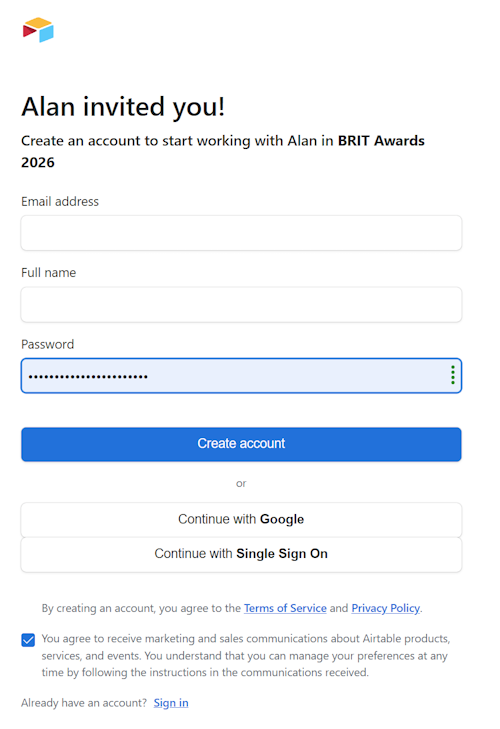
You will receive an invitation email with a link to a page similar to the one on the right, prompting you to create an AirTable account that will allow you to access the app. |
 |
Performance Status page
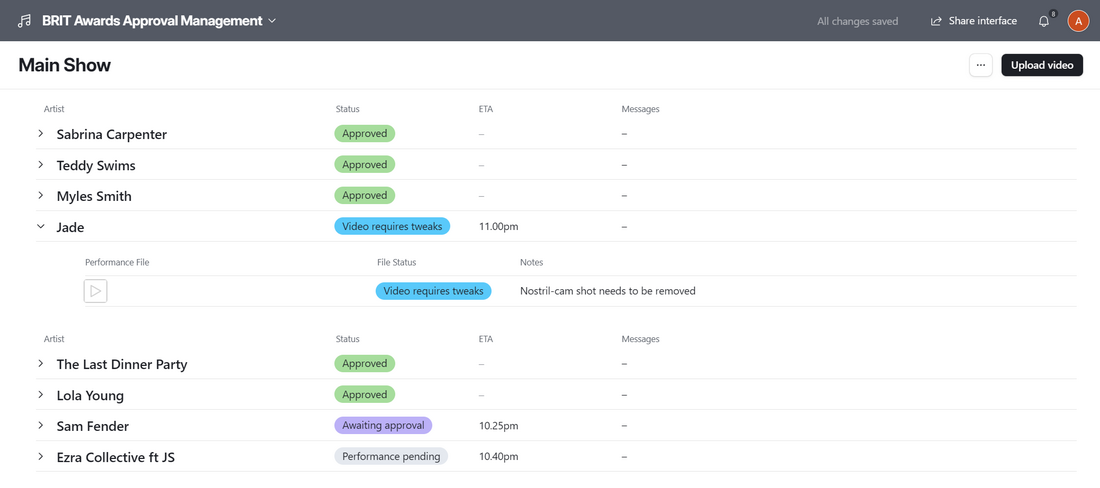
To access the app, you will log onto Airtable at the link you were sent when you were invited to use the app. Once logged on, you will see the performance status page, as shown below. Clicking on the > icon to the left of an artist's name will show you the files that have been uploaded for approval for that artist. Clicking on a ▶️ icon in the 'Performance File' column will play that file.
Uploading a video file

|
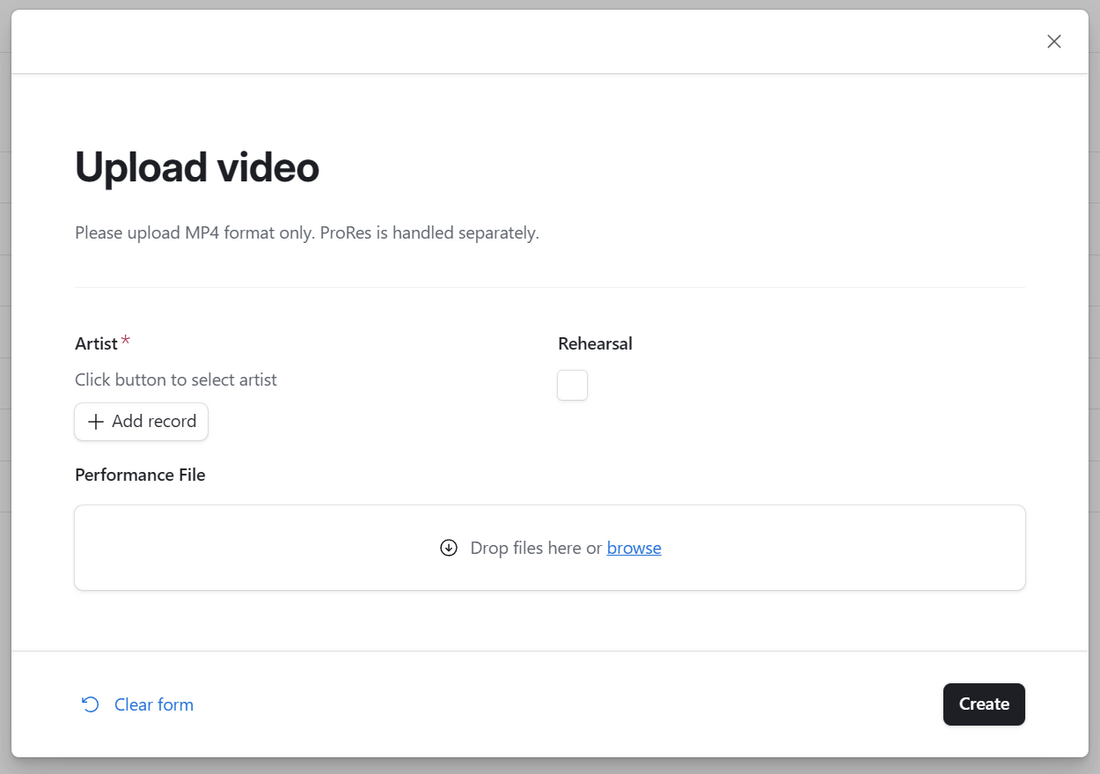
Uploading a video is simply a matter of clicking the 'Upload video' button and competing the form that pops up. Click the '+ Add record' button to select the artist, and drop the file to be uploaded onto the labelled box (or browse and select the file, if you prefer).
|
 |
The Approvals Room process

|
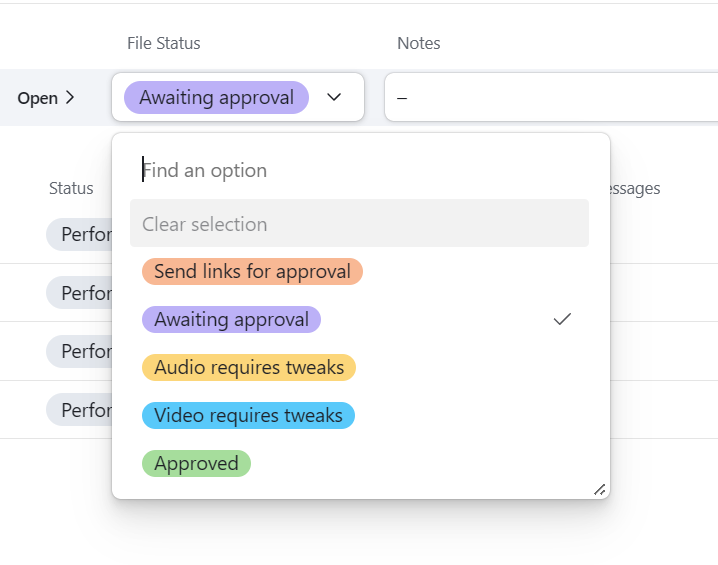
Once a file has been uploaded for approval, its status will automatically change to 'Awaiting approval'. The file can now be played by clicking on the ▶️button (which is gray, not blue, sorry!). |
 |
Emailing unique links
Once a video has been uploaded, a time limited link to the file is generated. This can be found by clicking the 'Open >' option that appears when you hover over a file.
Simply right-click on the long download link shown in the panel that appears to the right and select 'Copy'. You can then paste the link into emails/messages to anyone who needs access to the file.
To generate a new link (only after the existing link has expired), tick the box below the link.
